

Step 1: Get your Ramp API key
In Ramp, navigate to your integration settings and generate an API key:- Log in to your Ramp account
- Go to Settings > Integrations and search for “OpenRouter”
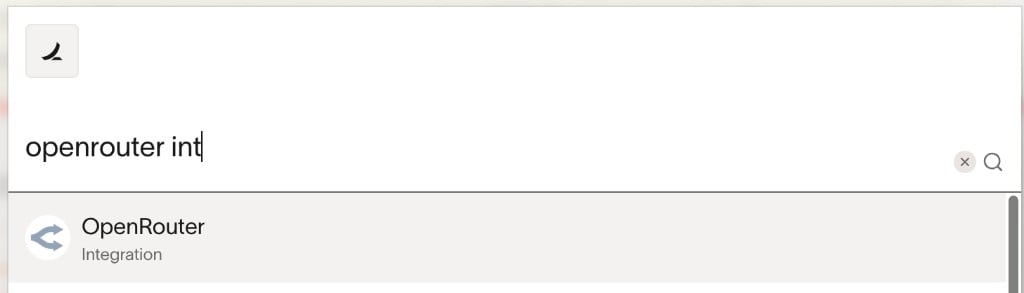
- Click the OpenRouter integration to view the details, then click Connect
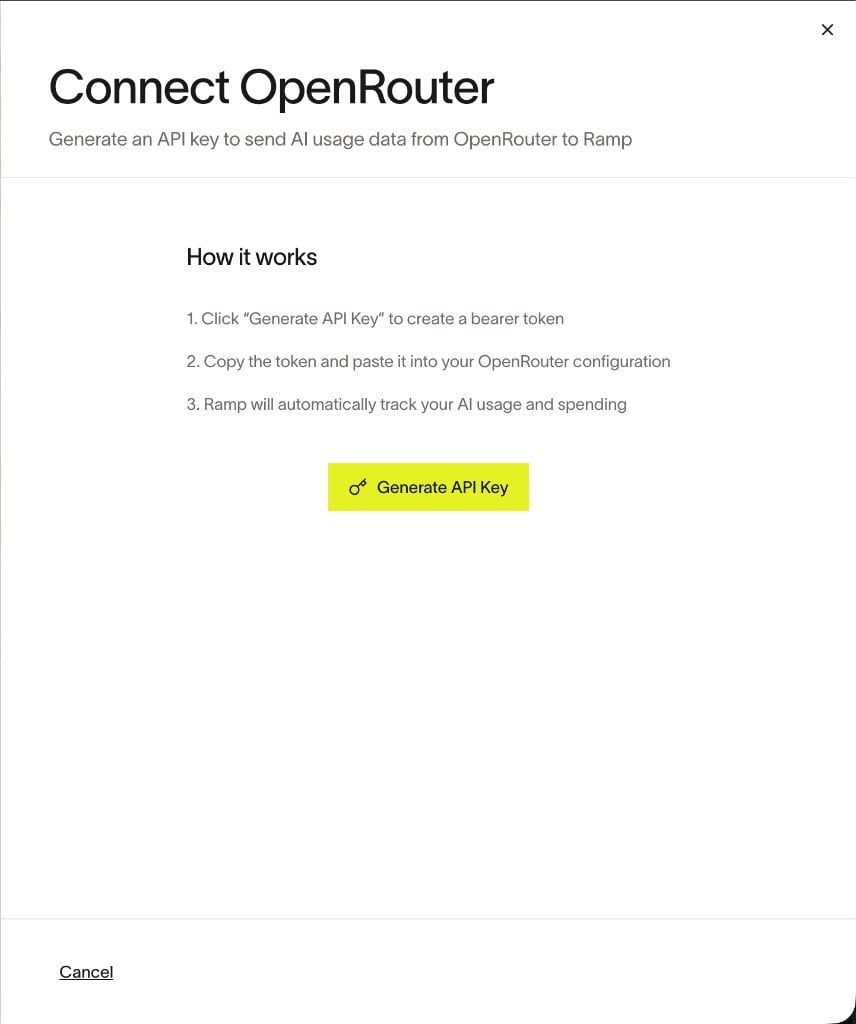
- Click Generate API Key and copy the token
Step 2: Enable Broadcast in OpenRouter
Go to Settings > Observability and toggle Enable Broadcast.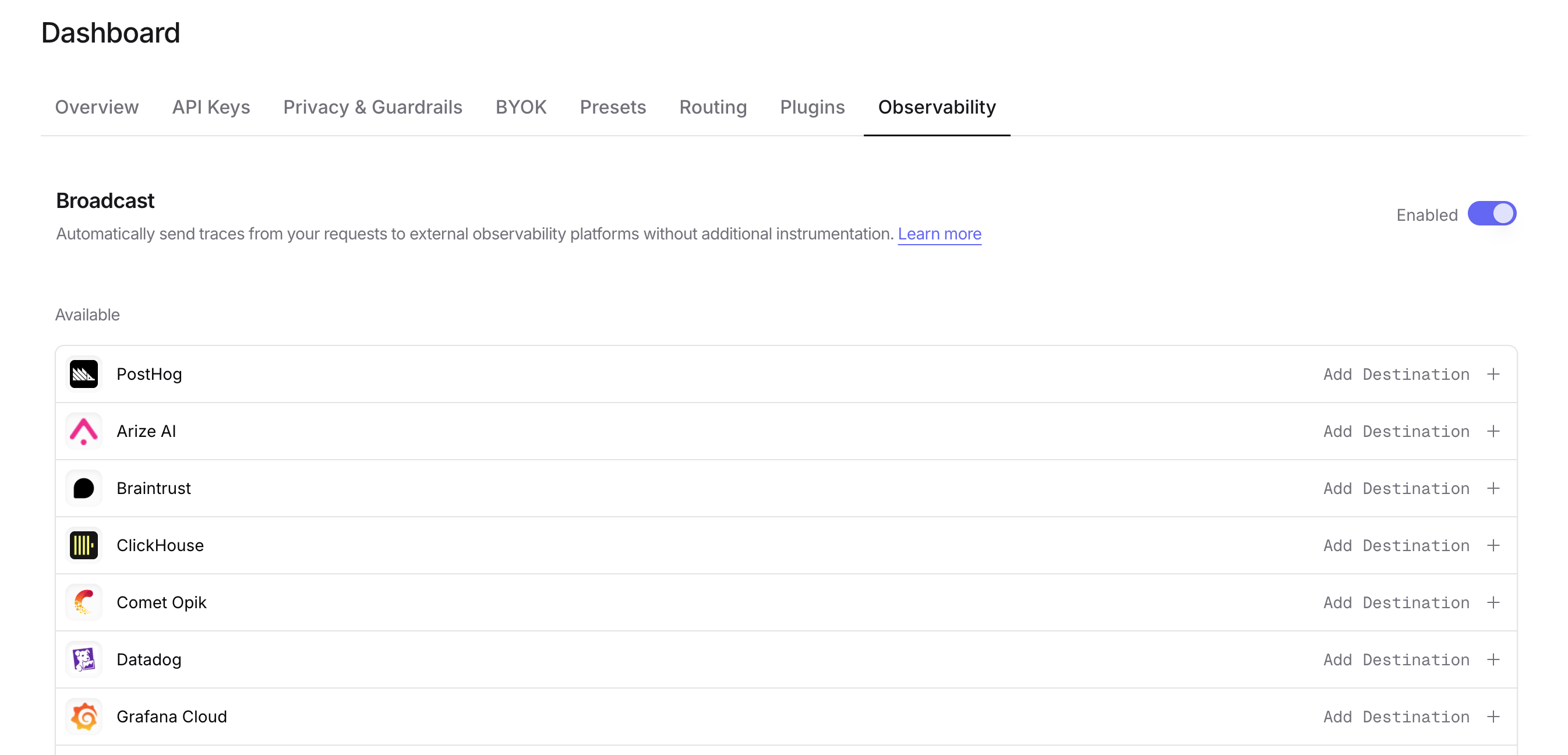
Step 3: Configure Ramp
Click the edit icon next to Ramp and enter:- API Key: Your Ramp API key
- Base URL (optional): Default is
https://api.ramp.com/developer/v1/ai-usage/openrouter. Only change if directed by Ramp - Headers (optional): Custom HTTP headers as a JSON object to include in requests to Ramp
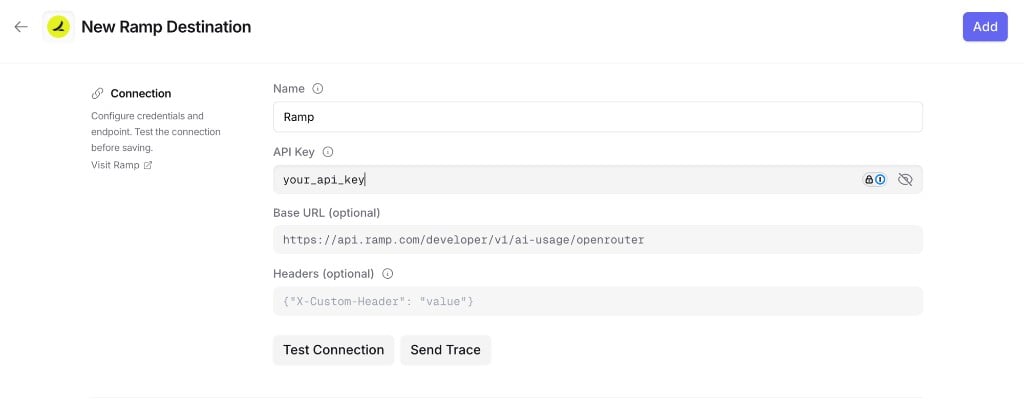
Step 4: Test and save
Click Test Connection to verify the setup. The configuration only saves if the test passes.Step 5: Send a test trace
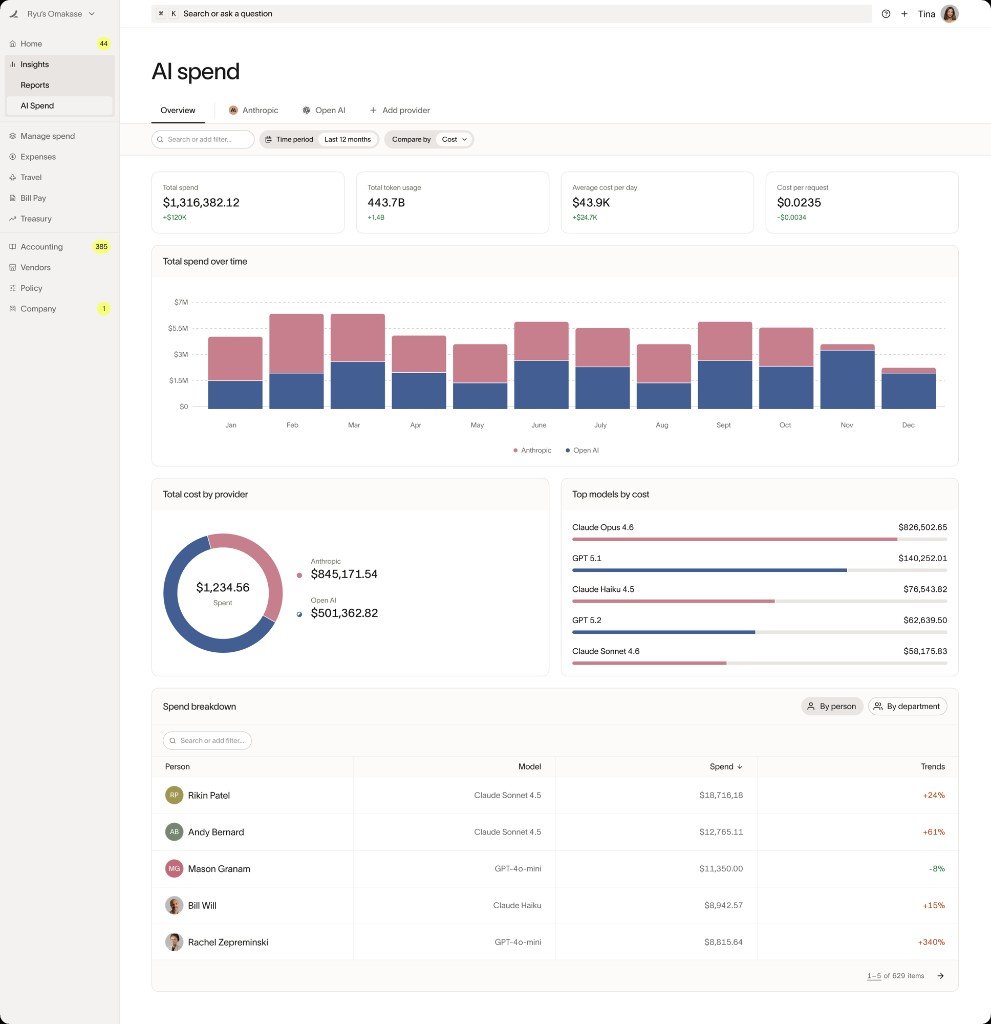
Make an API request through OpenRouter and verify that the AI usage data appears in your Ramp dashboard.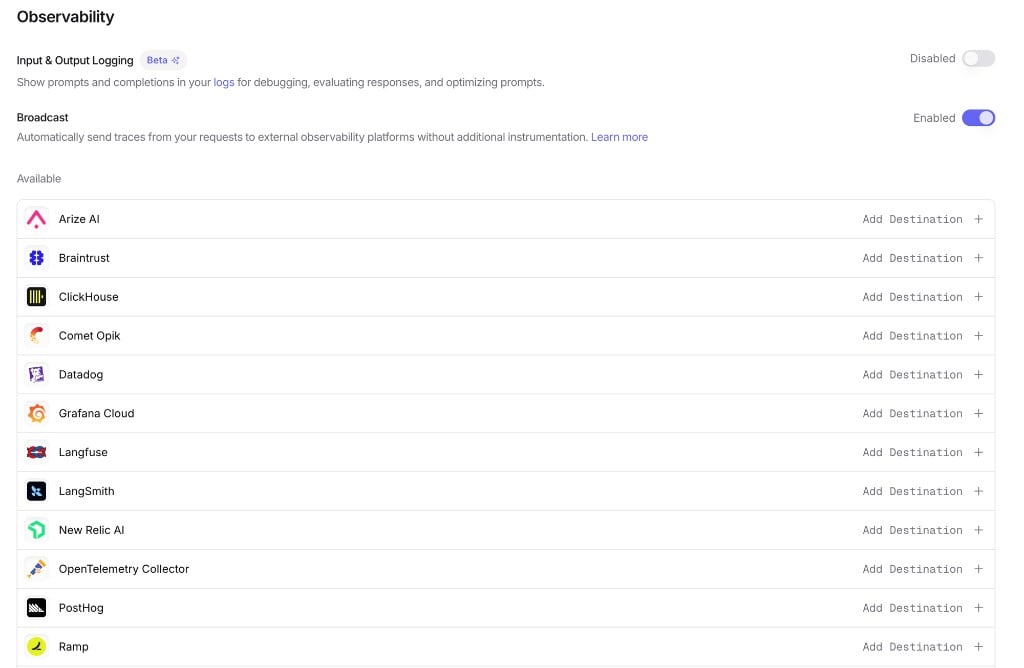
Trace Data
Ramp receives traces via the OpenTelemetry Protocol (OTLP). Each trace includes:- Token usage: Prompt tokens, completion tokens, and total tokens consumed
- Cost information: The total cost of the request
- Timing: Request start time, end time, and latency metrics
- Model information: The model slug and provider name used for the request
- Request and response content: The input messages and model output (unless Privacy Mode is enabled)
Custom Metadata
Custom metadata from thetrace field is sent as span attributes in the OTLP payload.
Supported Metadata Keys
Example
Additional Context
- The
userfield maps touser.idin span attributes - The
session_idfield maps tosession.idin span attributes - Custom metadata keys from
traceare included as span attributes under thetrace.metadata.*namespace - Standard GenAI semantic conventions (
gen_ai.*) are used for model, token usage, and cost attributes